
How to Take an Assessment on RedyHire
Follow this screenshot-led walkthrough before you begin. It covers the full candidate flow from setup to final submission in under a minute.
Read the instructions and continue
Check the requirements, review the rules, tick the confirmation box, and click Proceed.
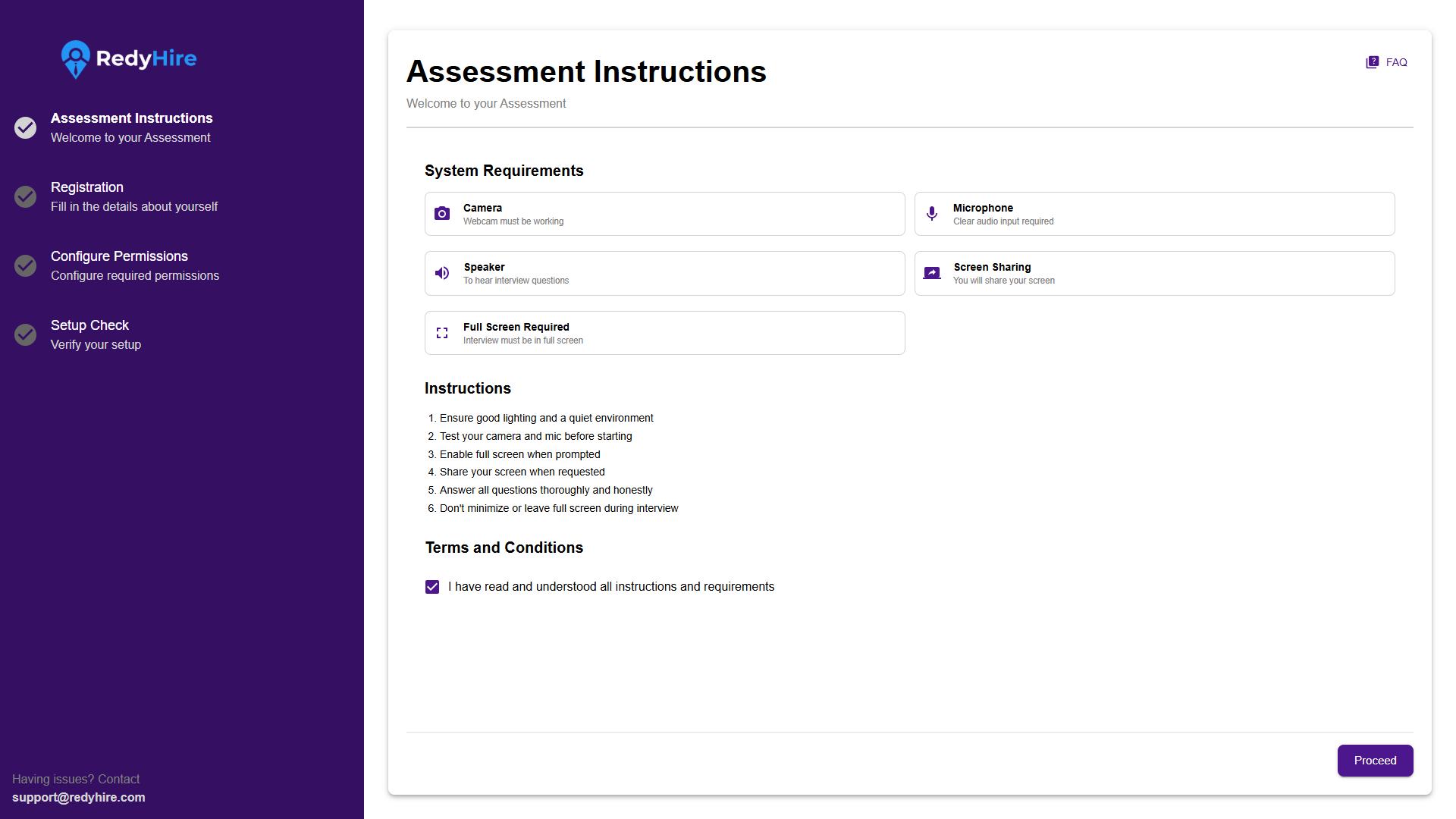
Review the system requirements before you continue.
Tick the checkbox after reading the instructions.
Click Proceed to move to registration.
Confirm your details
Enter your name, email, and phone number, then click Register. Invited candidates may see these fields pre-filled.
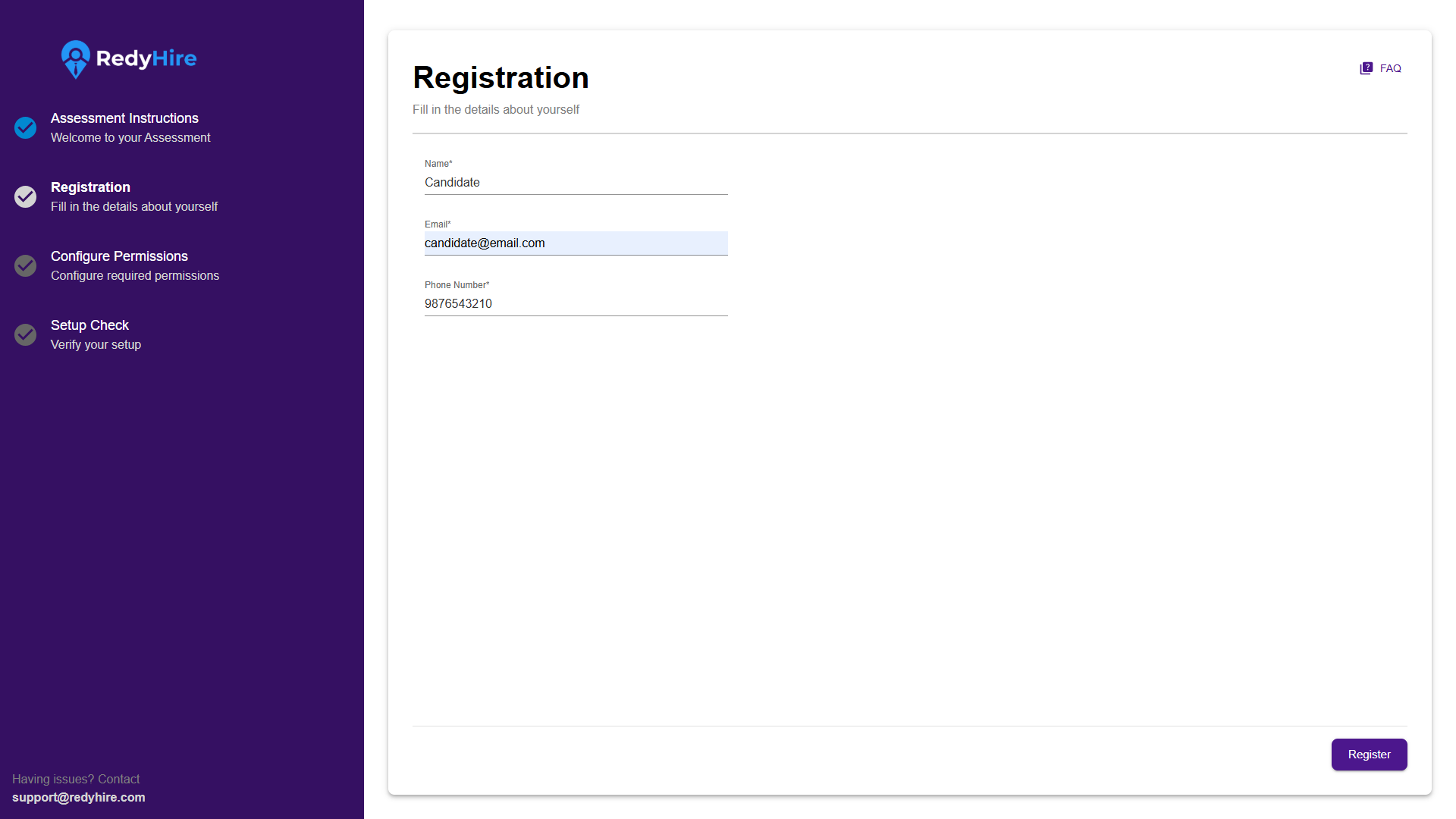
Enter or verify your name, email, and phone number.
Click Register to continue.
Allow camera and microphone access
When the browser prompt appears, choose Allow. The page will update once both permissions are enabled.
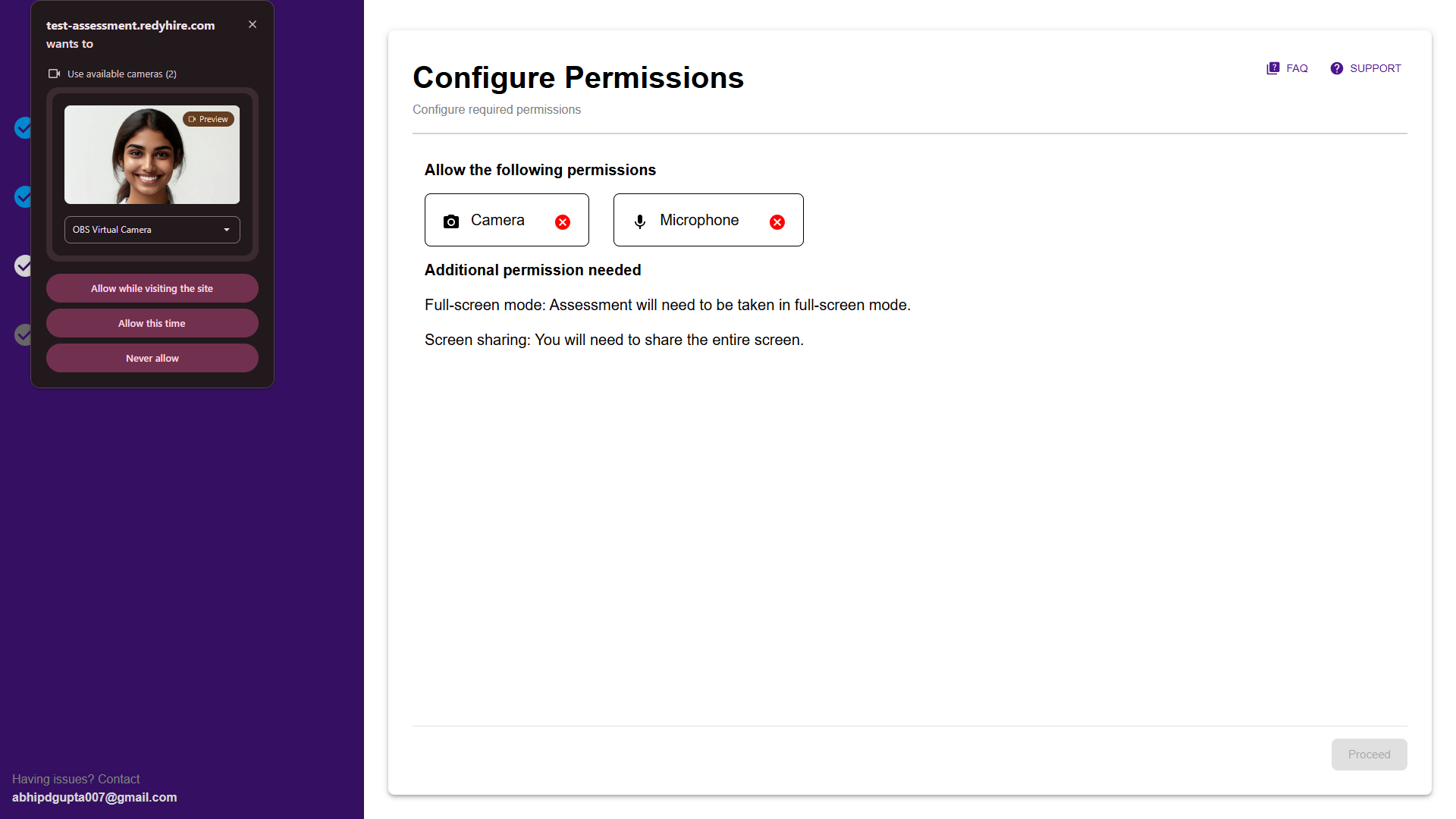
Choose Allow while visiting this site in the browser prompt.
Wait until both permission tiles switch from blocked to allowed.
Proceed stays locked until permissions are granted.
Confirm your speaker works
Play or replay the sample audio, then tick the confirmation box only after you can hear it clearly.
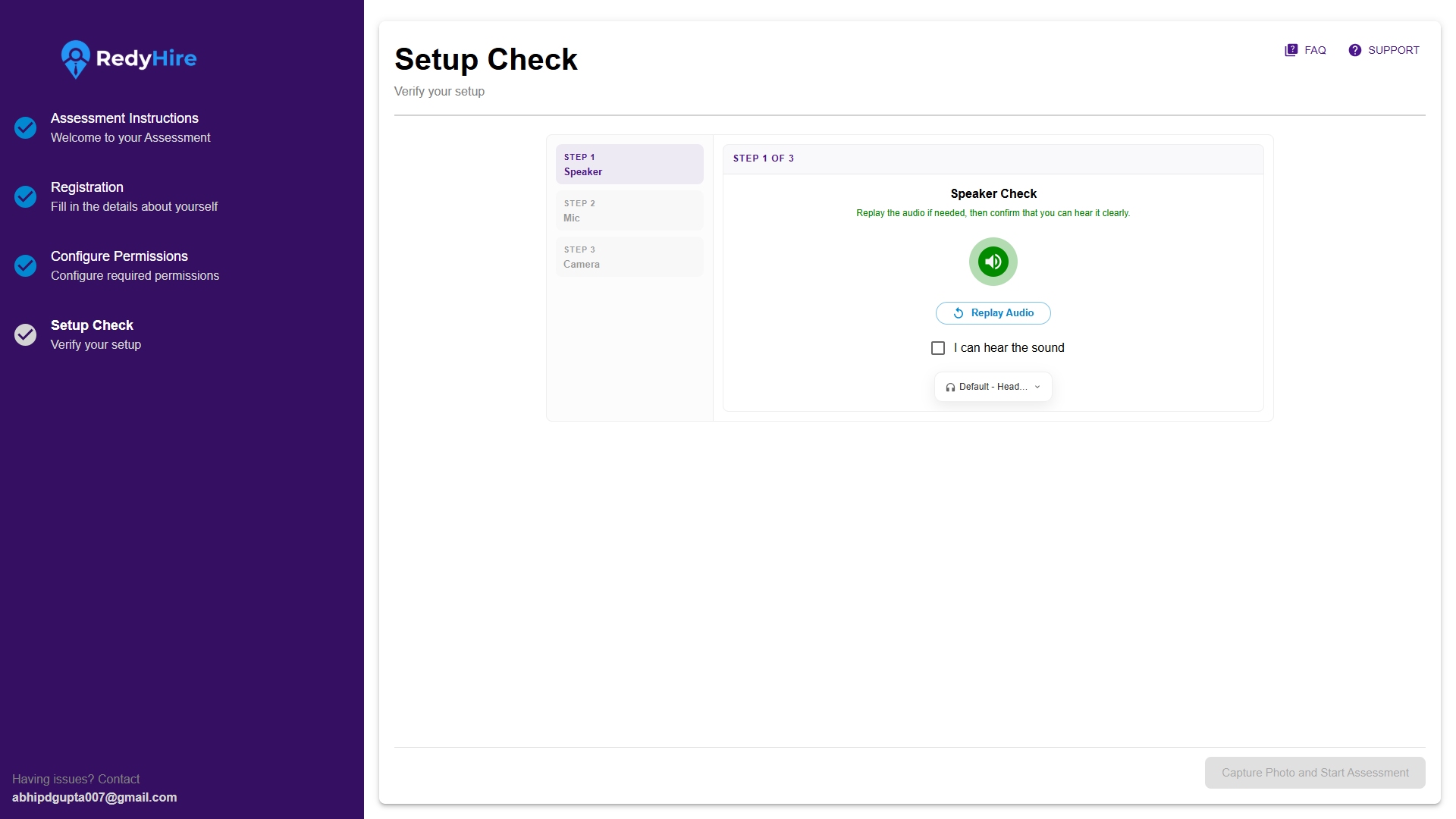
Play the sample audio.
Tick this box once the audio is clear.
Record and verify your microphone
Read the sample sentence aloud, replay the clip if needed, then confirm that your mic is working correctly.
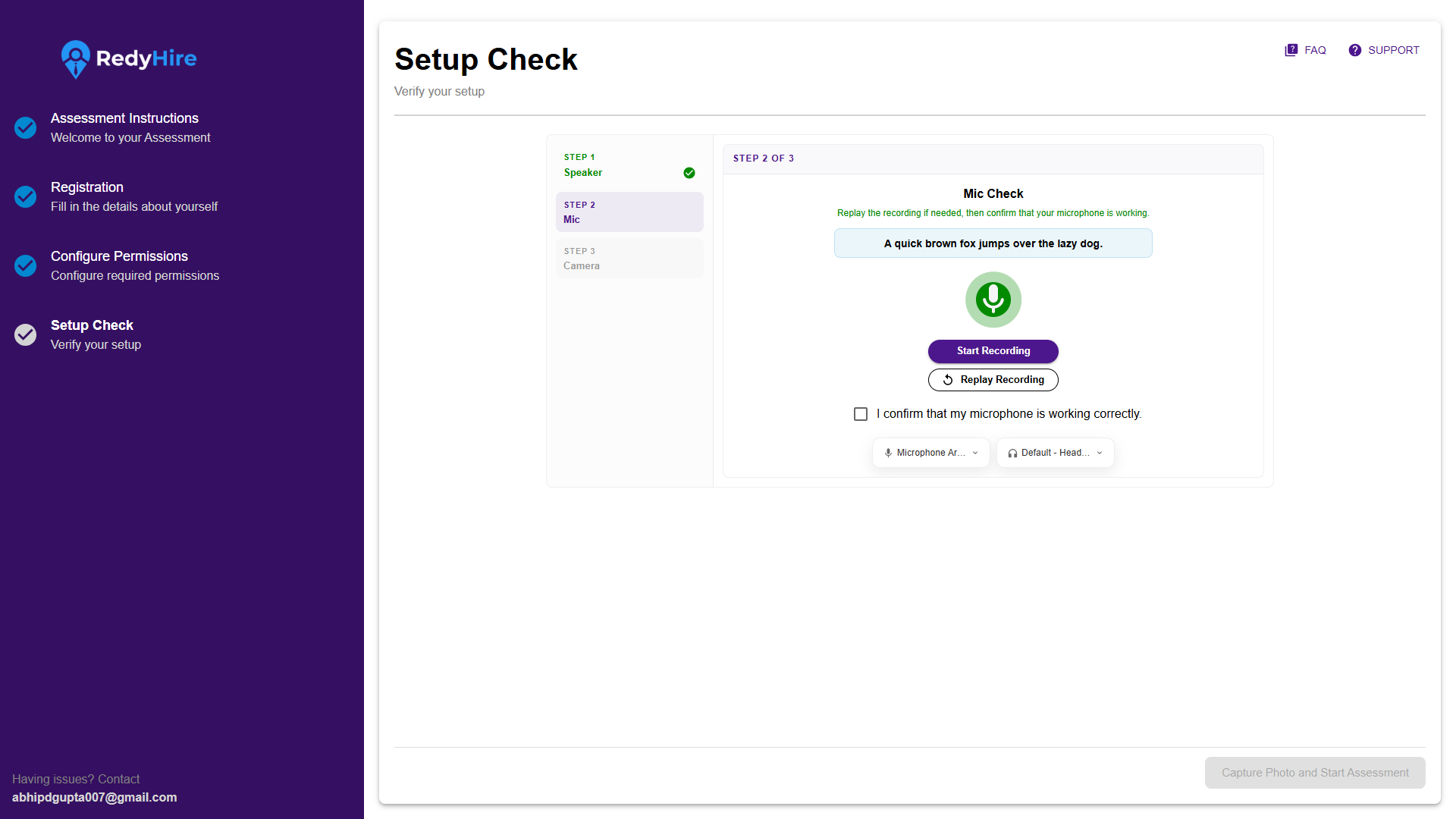
Click Start Recording and read the sample sentence.
Play the recorded audio.
Tick the checkbox to confirm microphone is working correctly.
Keep your face visible for the camera check
Stay centered in the frame, make sure your face is detected, and then start the assessment from this screen.
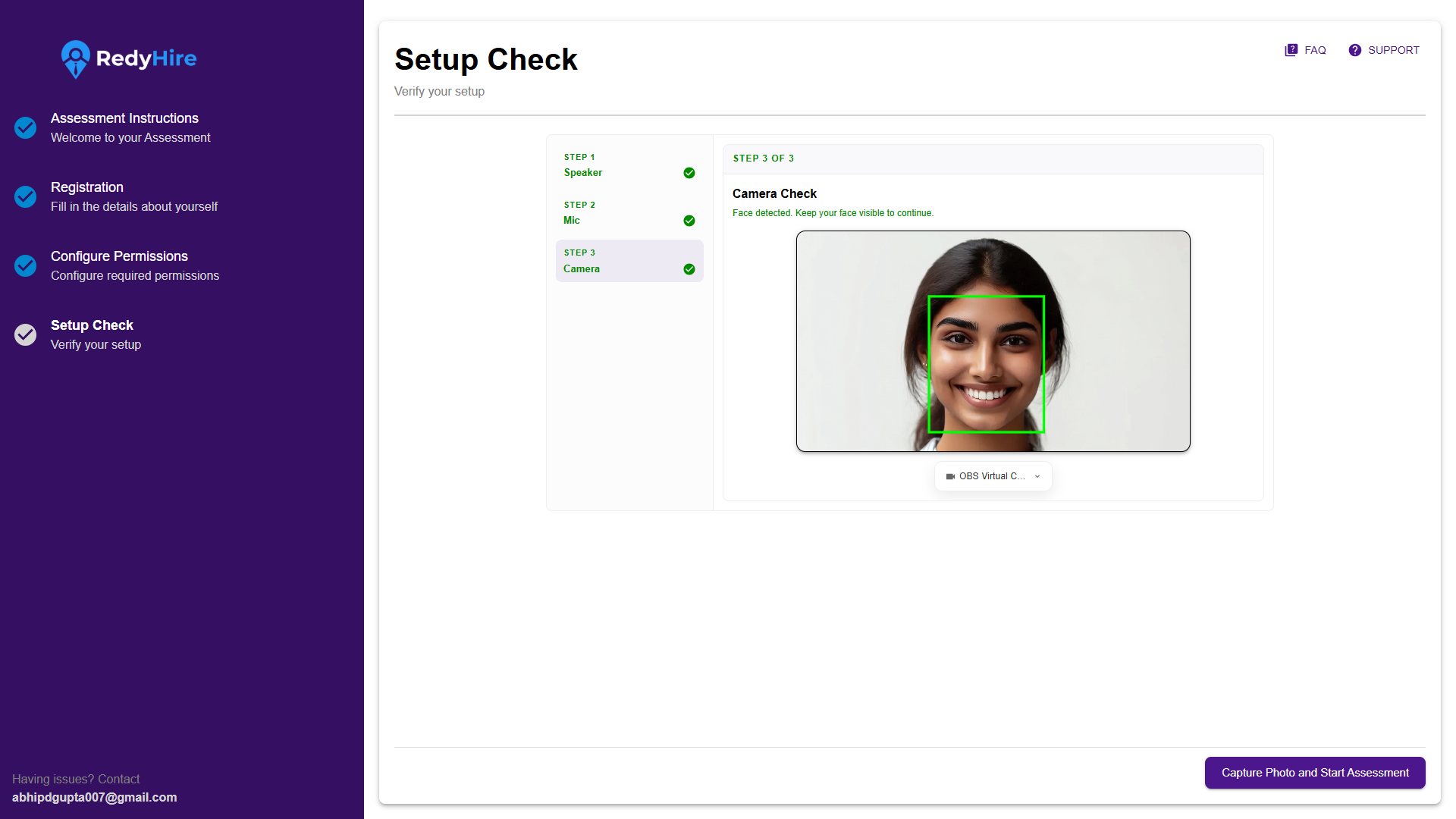
Keep your face centered inside the green frame.
Click the button to capture a picture and start assessment.
Share your entire screen
Select Entire Screen, click the full-screen preview, and then press Share to continue.
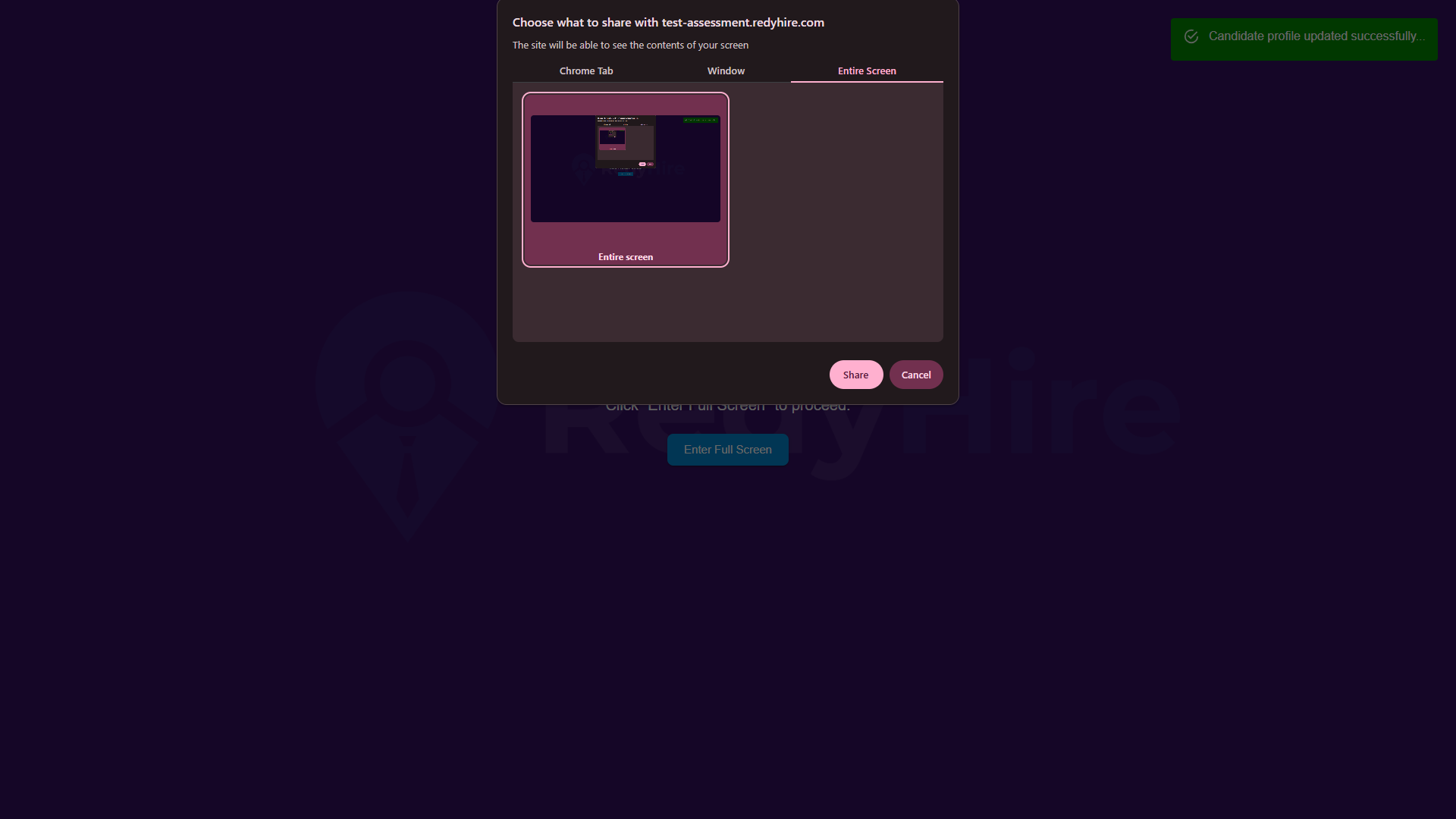
Choose Entire Screen, not a browser tab or a single window.
Select the full-screen preview tile.
Click Share to move into the assessment.
Review the rules and start the test
Scan the duration and test rules, then click Start Test when you are ready to begin.
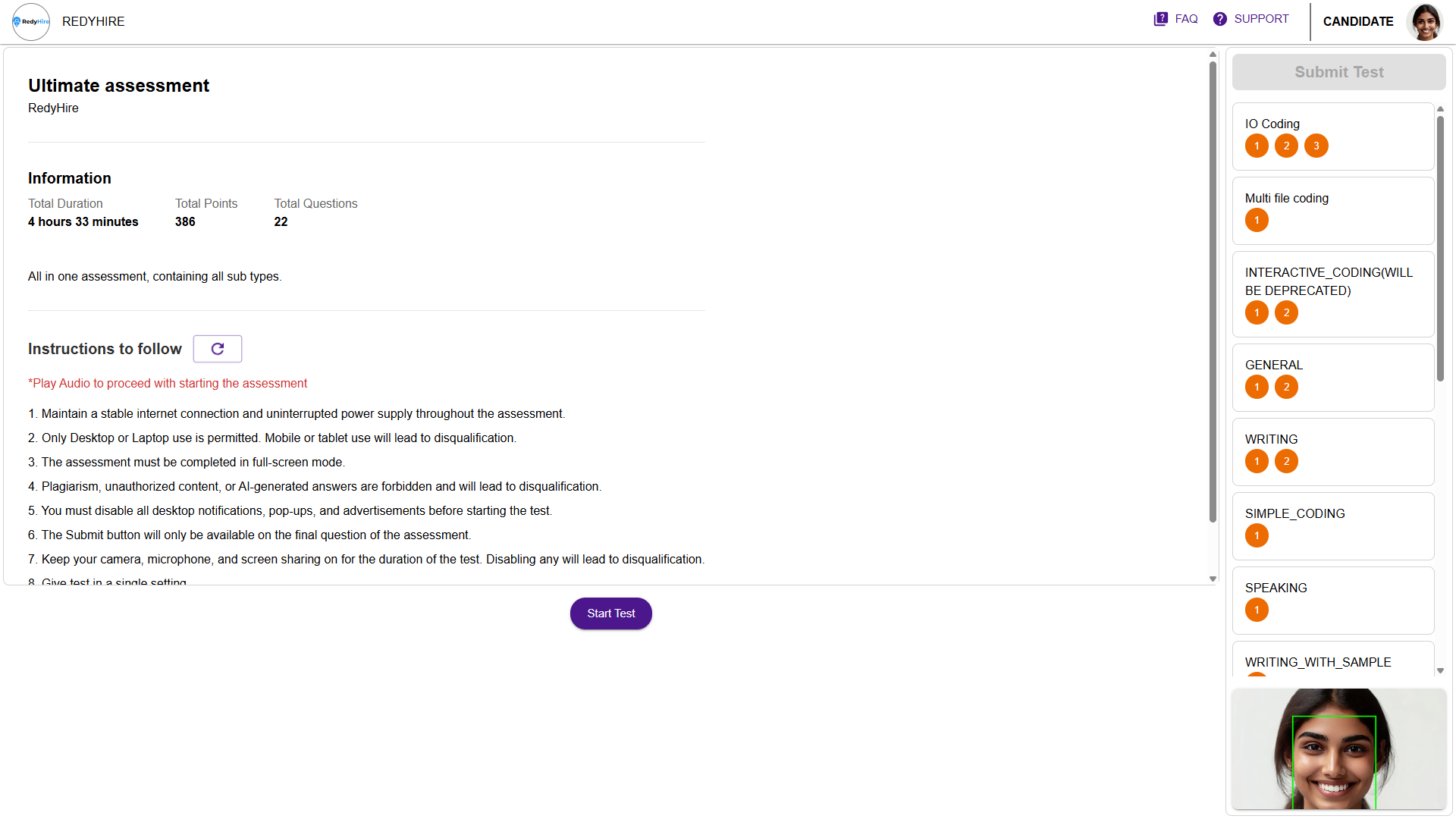
Check the duration, points, and total question count.
Read the test rules before you begin.
Click Start Test when you are ready.
Answer questions and move through the test
Read the prompt, answer in the panel on the right, watch the timer, and use Next or the navigator to keep moving.
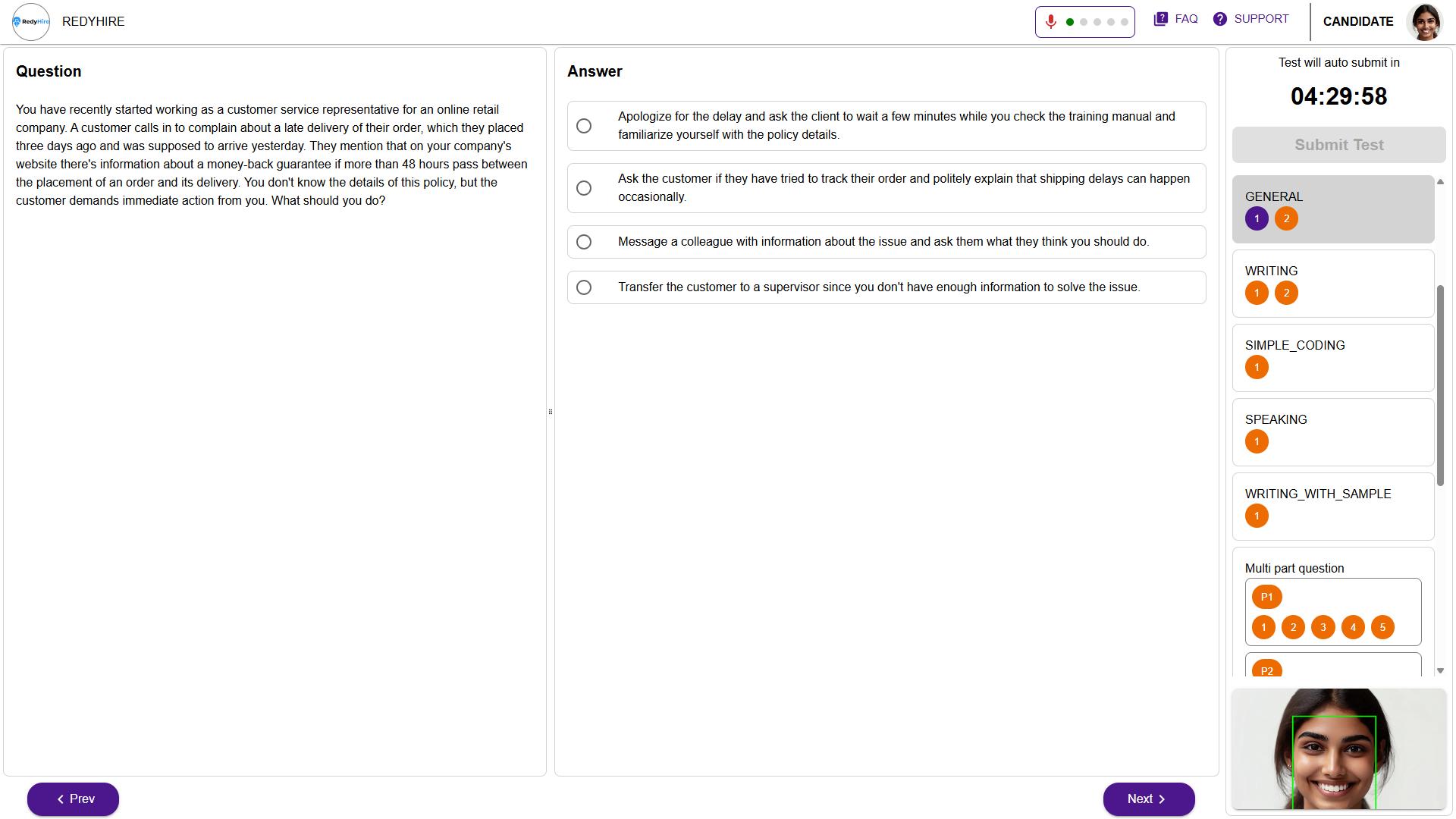
Read the current question on the left side.
Select or enter your answer in the answer panel.
Keep an eye on the countdown timer.
Click Next to move to the next question.
Confirm final submission
When you click Submit Test, RedyHire shows one final confirmation. Choose Yes only when you are done.
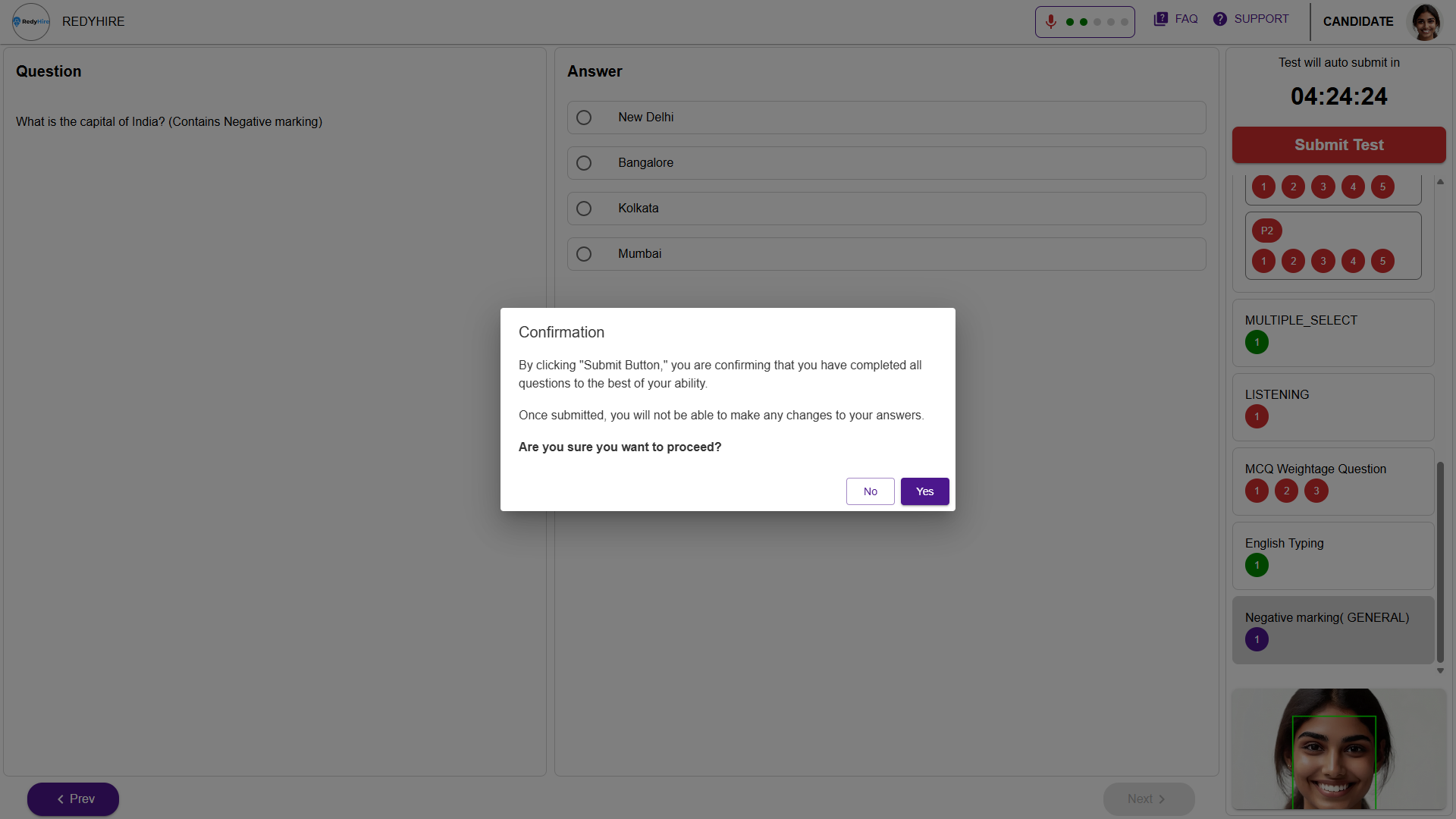
Read the confirmation message before you finish.
Click Yes to submit your answers.
Quick checklist before you begin
Use a stable internet connection and keep your laptop charged.
Keep camera, microphone, and screen sharing on for the full test if required.
Do not refresh the page or leave full-screen mode during the assessment.
Submit before the timer reaches zero.
Keep exploring
These pages explain the assessment product and trust model behind the candidate flow you just reviewed.
Contact RedyHire support
If something does not work during setup or while taking the test, contact support right away.