
How to Attend an AI Interview on RedyHire
Follow this screenshot-led walkthrough to join your AI interview, respond naturally, complete coding if it appears, and finish without confusion.
Read the instructions and continue
Review the requirements, interview rules, and terms, then confirm that you are ready to proceed.
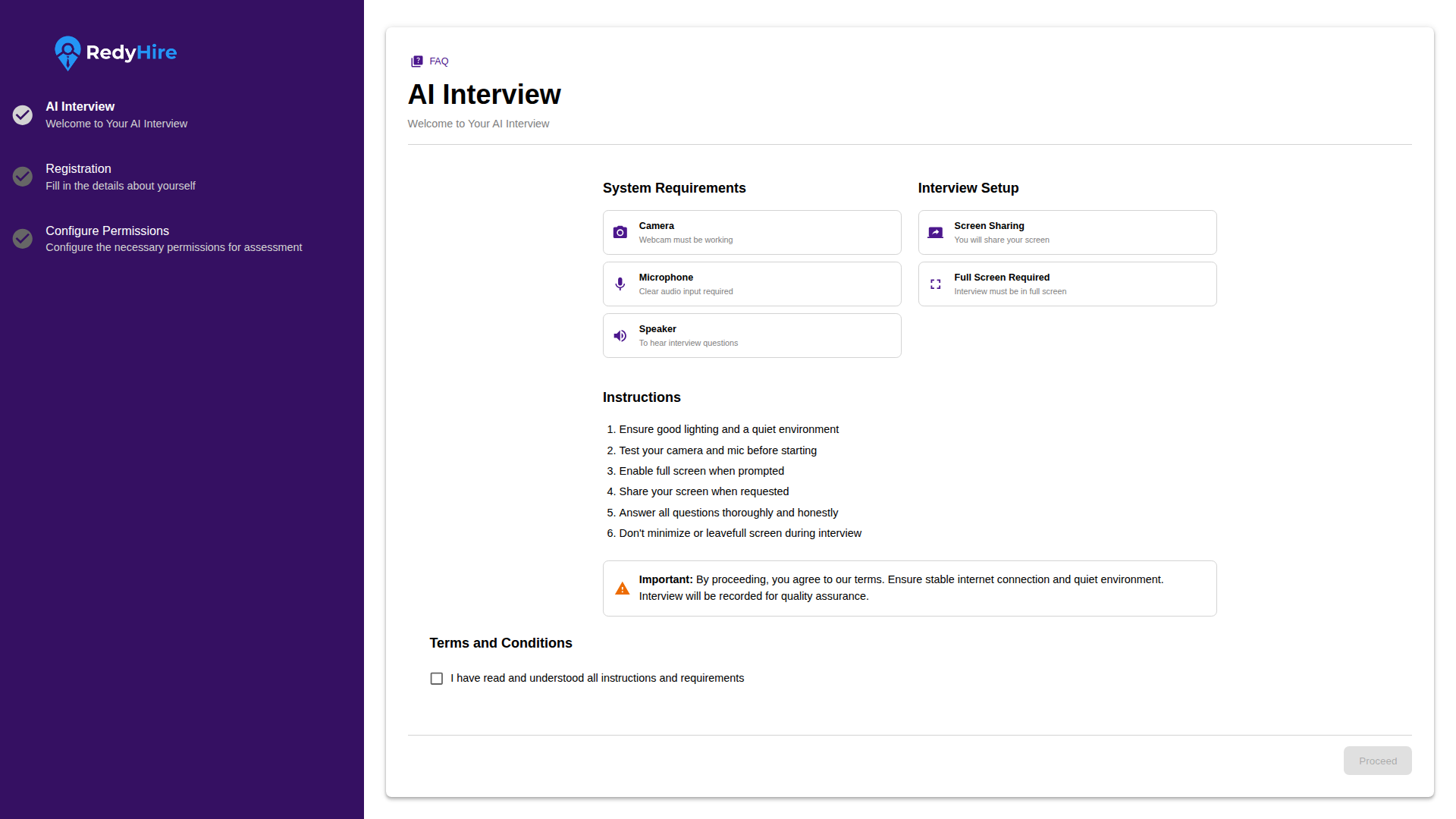
Read the System Requirement and make sure your setup fullfils them.
Read the interview instructions before you continue.
Tick the confirmation box after reviewing the requirements.
Click Proceed to move to registration.
Confirm your registration details
Enter or verify your name, email, and phone number, then register to continue.
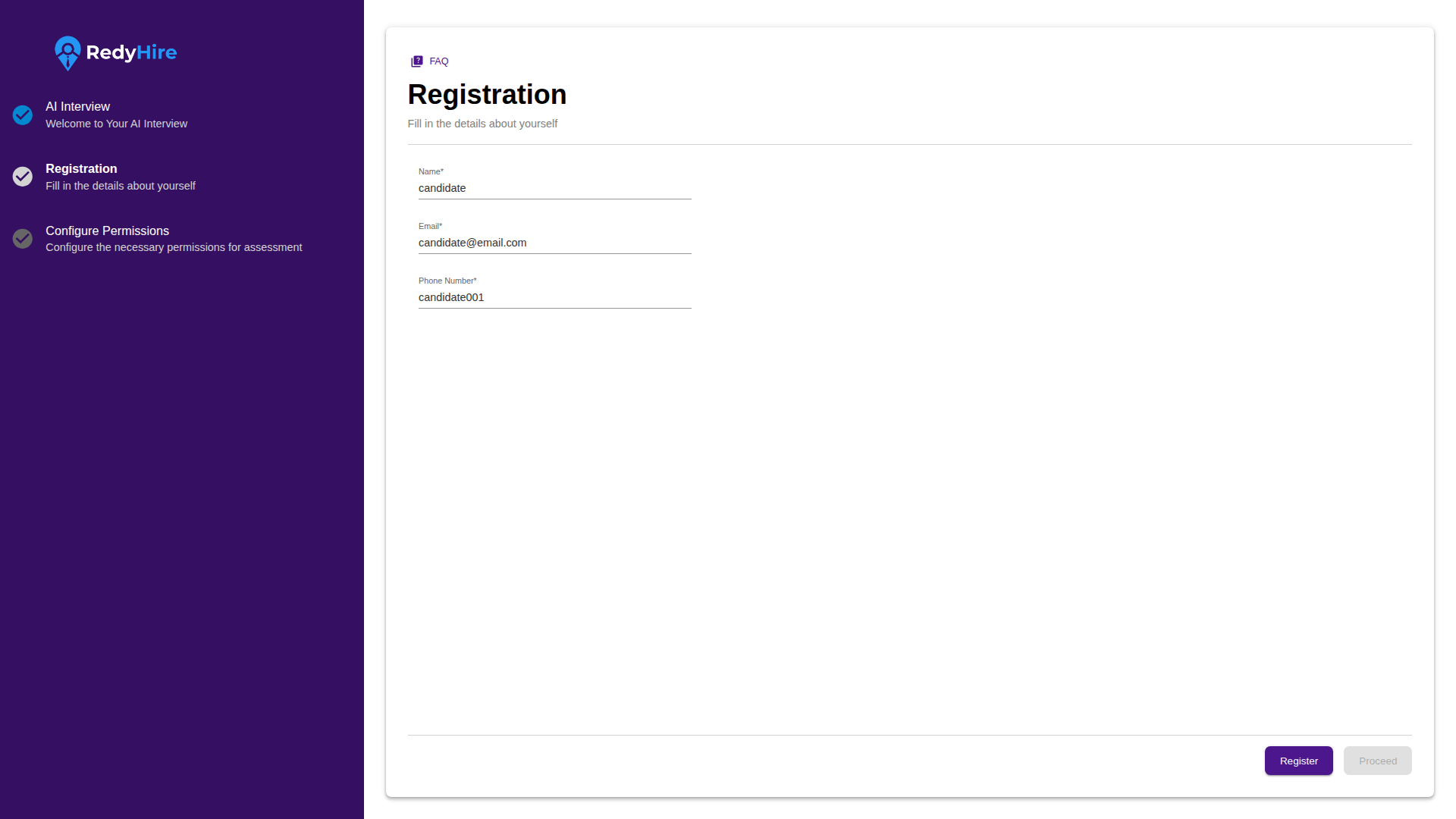
Enter or verify your name, email, and phone number.
Click Register to move to the next step.
Allow camera and microphone access
When the browser prompt appears, allow access so the interview can use your camera and microphone.
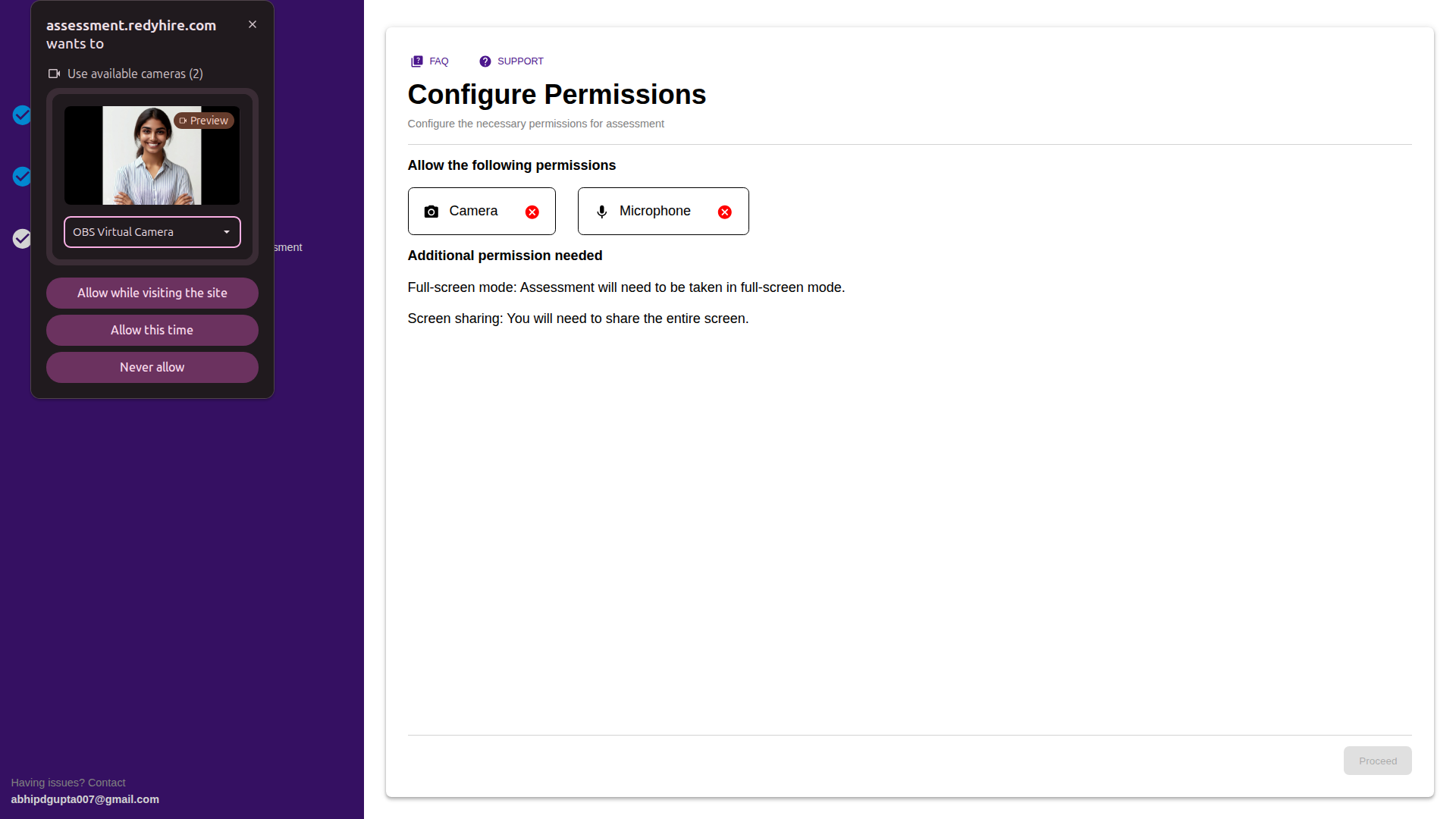
The interview needs both camera and microphone access before you can continue.
Click Allow while visiting this site in the browser prompt.
Proceed stays locked until permissions are granted.
Share your entire screen
Choose Entire Screen, select the full-screen preview tile, and then click Share.
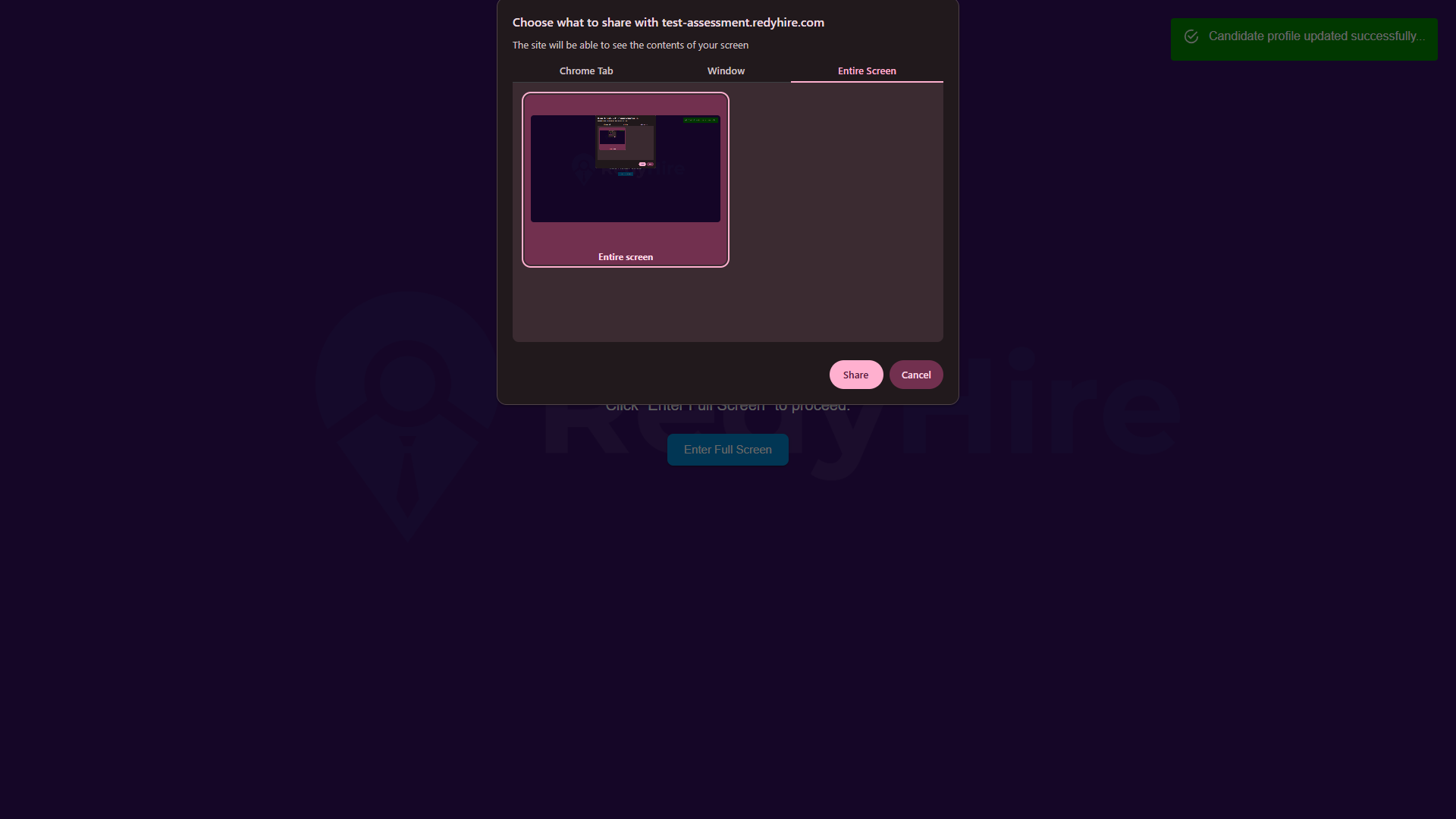
Choose Entire Screen, not a browser tab or a single window.
Click on Full Screen to take the interview in full screen mode.
Click Share to continue.
Complete the setup check and join
Keep your face visible, wait for the checks to pass, and join only when the interview is ready.
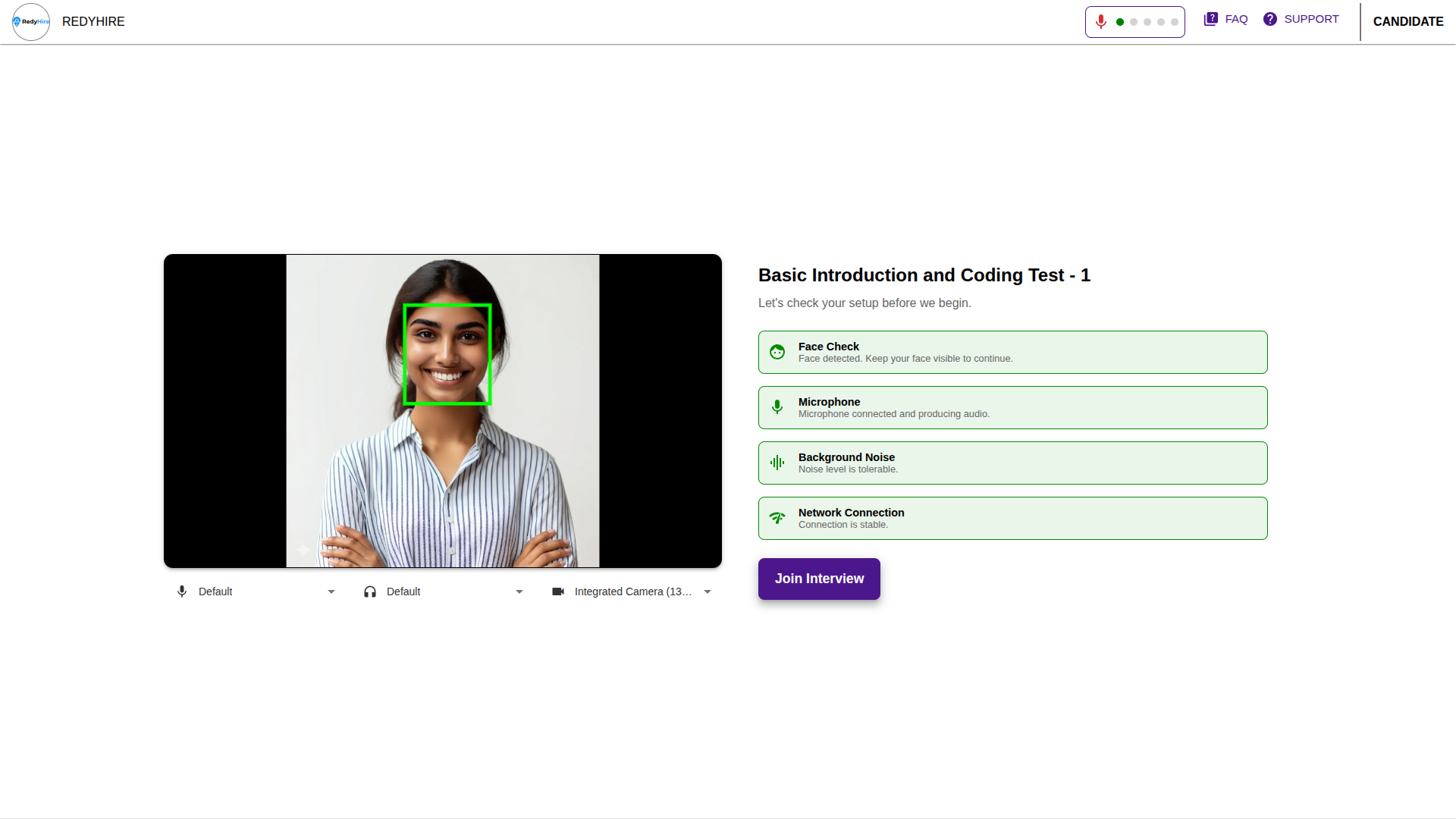
Keep your face clearly visible in the frame.
Wait for microphone, background noise, and network checks to pass.
Click Join Interview when everything is ready.
Speak with the AI interviewer naturally
Answer the AI interviewer the same way you would answer a human interviewer, and be ready for follow-up questions.
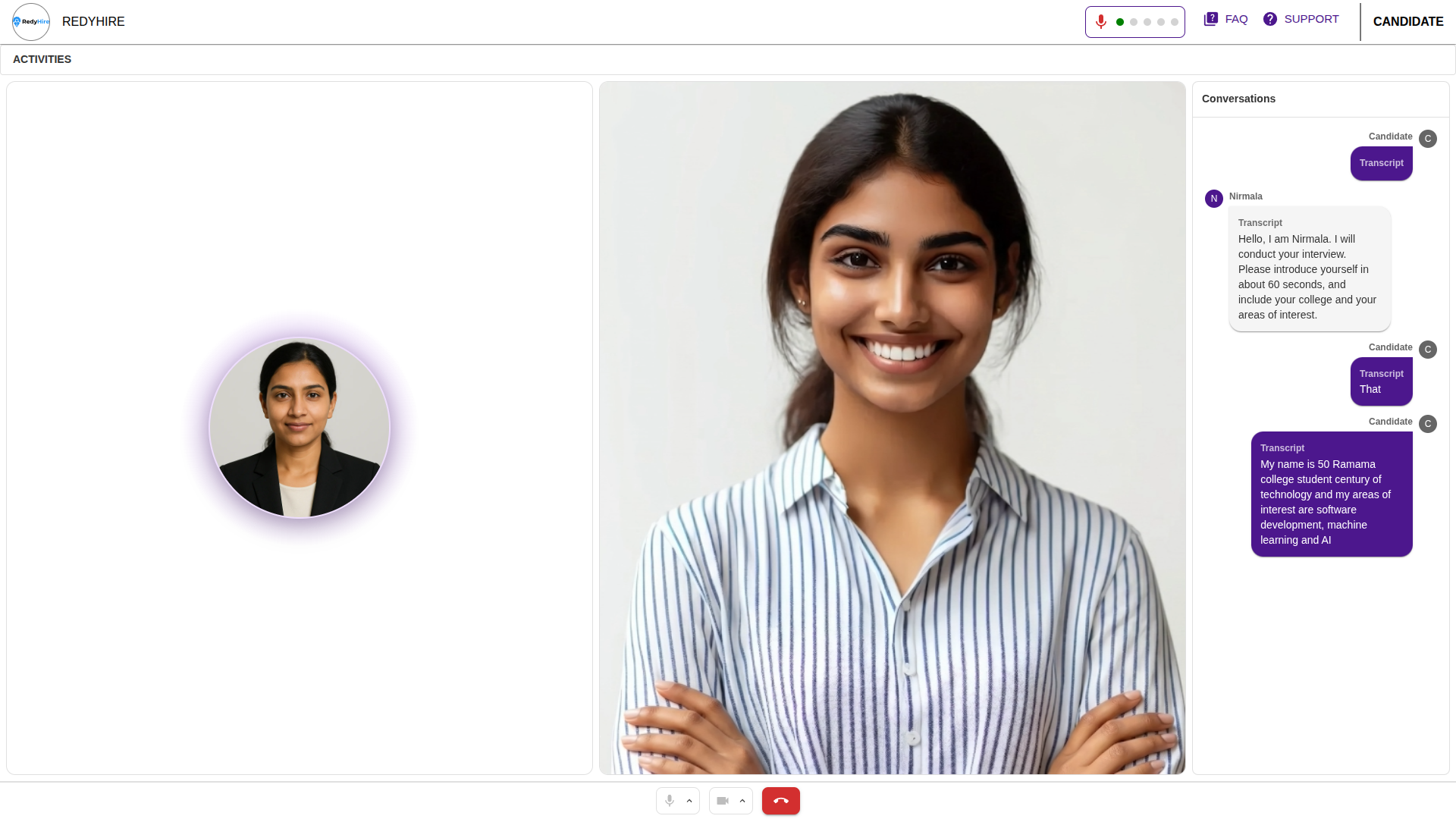
Answer clearly and naturally, like a real interview conversation.
Expect follow-up questions based on what you say.
If the AI interviewer seems unresponsive, say: "Are you there".
Optional: coding round
Some AI interviews include a coding task. If it appears, read the problem and solve it in the editor.
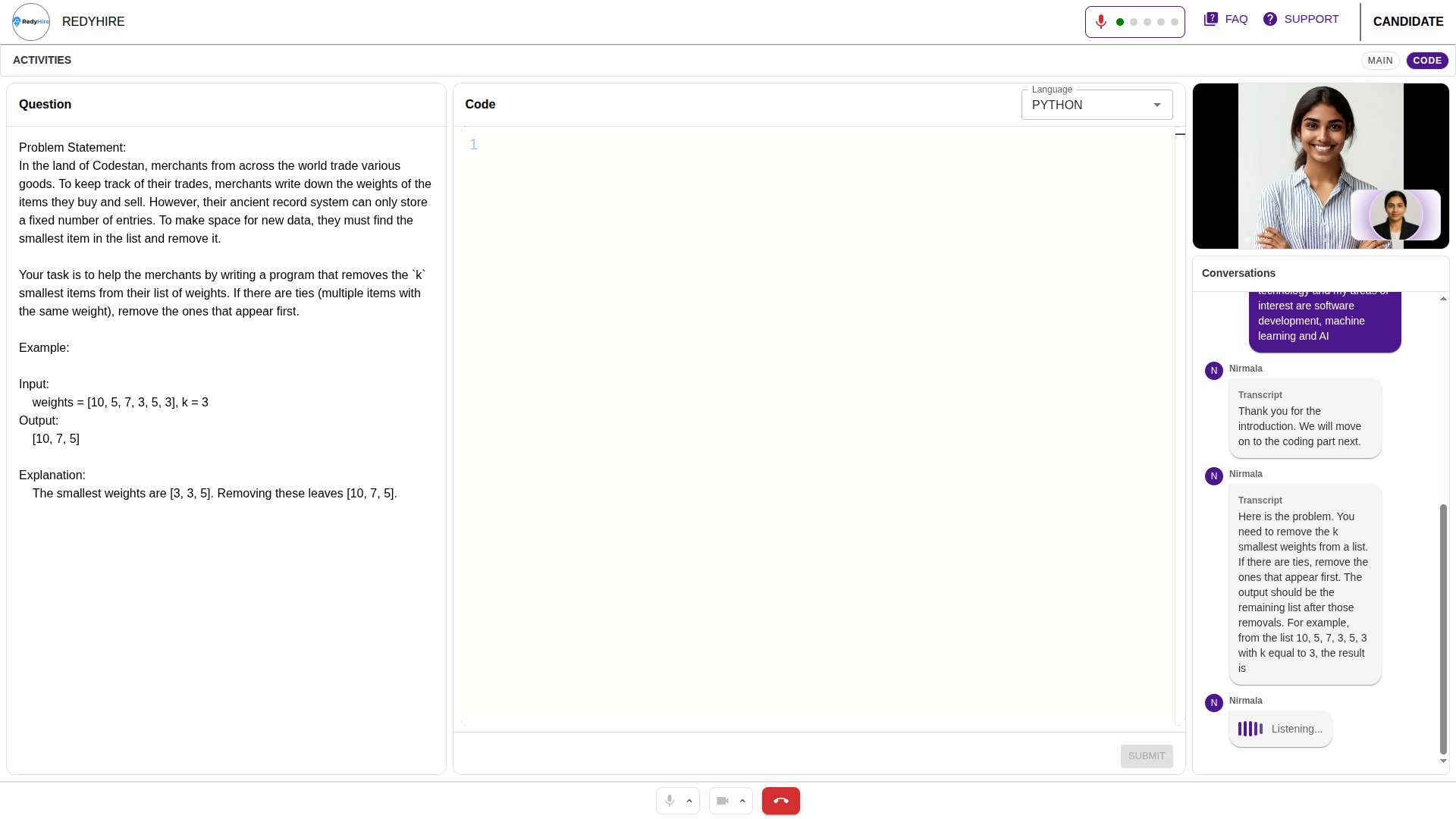
Read the coding problem on the left side.
Write your solution in the code editor.
The AI interviewer may ask about your approach while you solve the problem.
Explain your approach and ask clarifying questions
During coding rounds, the AI interviewer may ask about your approach, and you can ask clarifying questions if something is unclear.
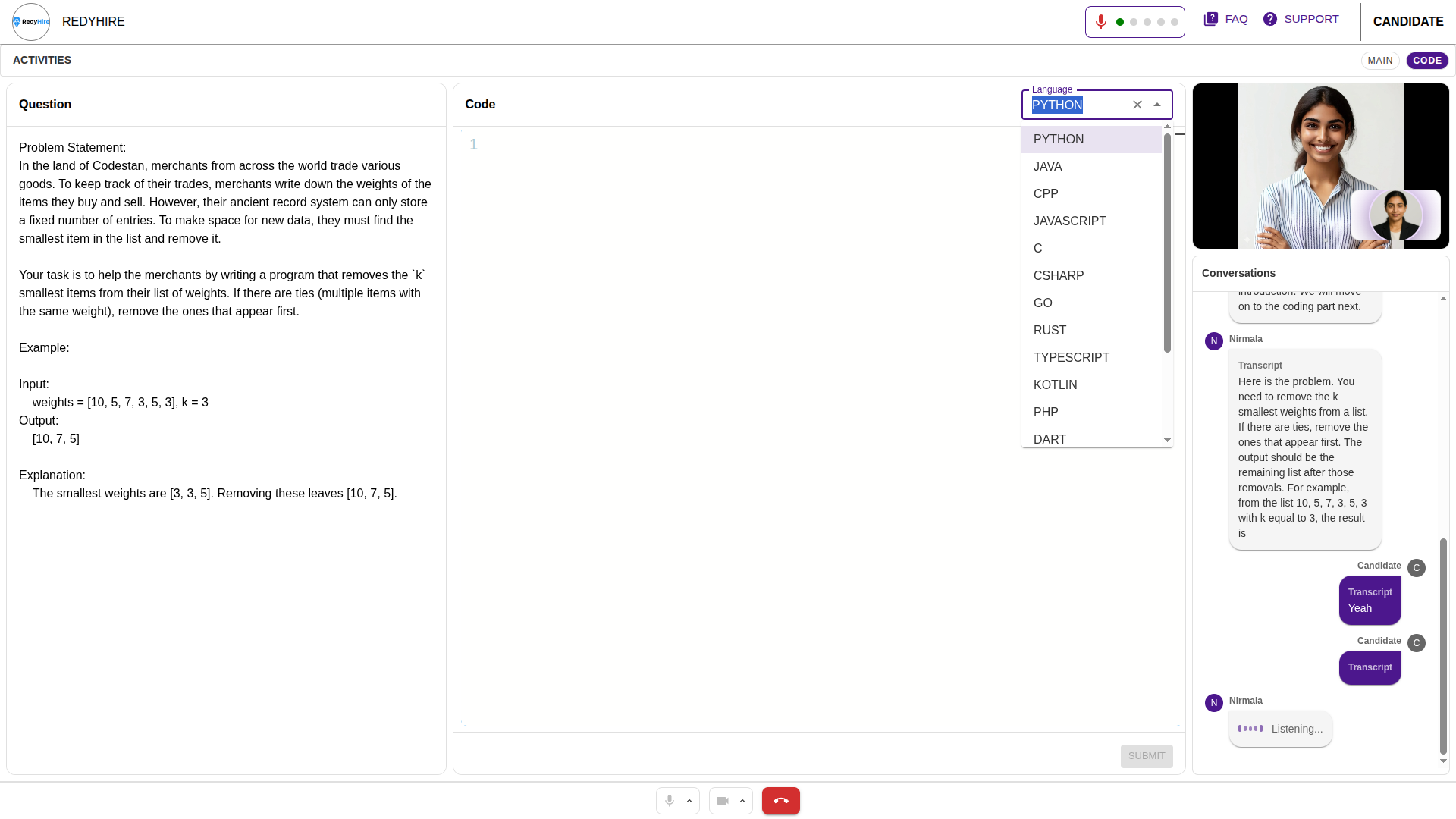
Explain your approach when the interviewer asks about your logic.
Ask clarifying questions if the problem statement is not fully clear.
The AI interviewer may review your code, point out issues, and ask follow-up questions.
Finish the interview when you are done
When the interview is complete, confirm that you want to end it and wait while your answers are submitted.
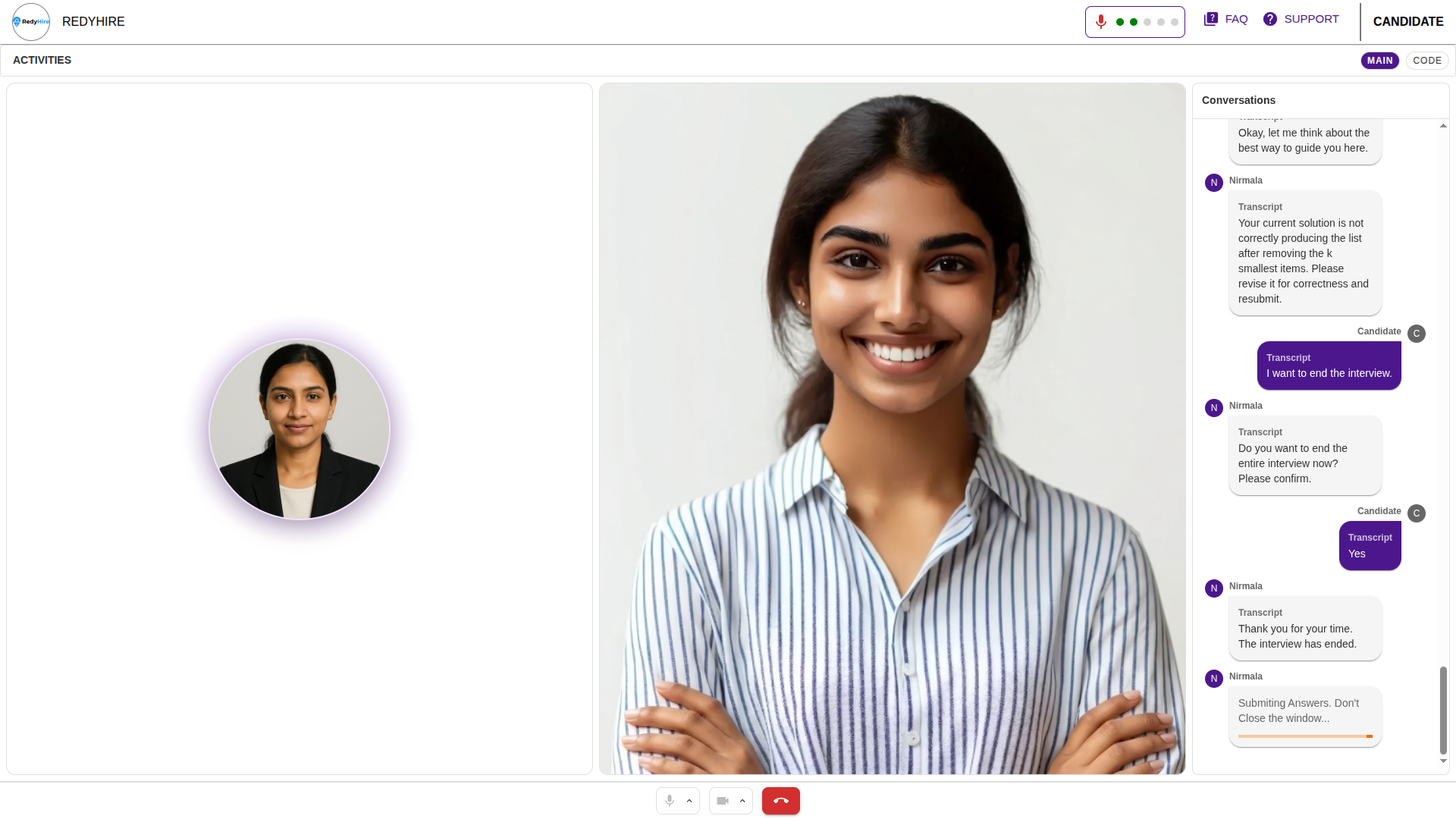
The interviewer may ask you to confirm before ending the interview.
Say Yes only when you are ready to finish.
Wait while your answers are being submitted.
Finish and confirm submission
Do not close the window while the interview is being submitted. Wait until the final success screen appears.
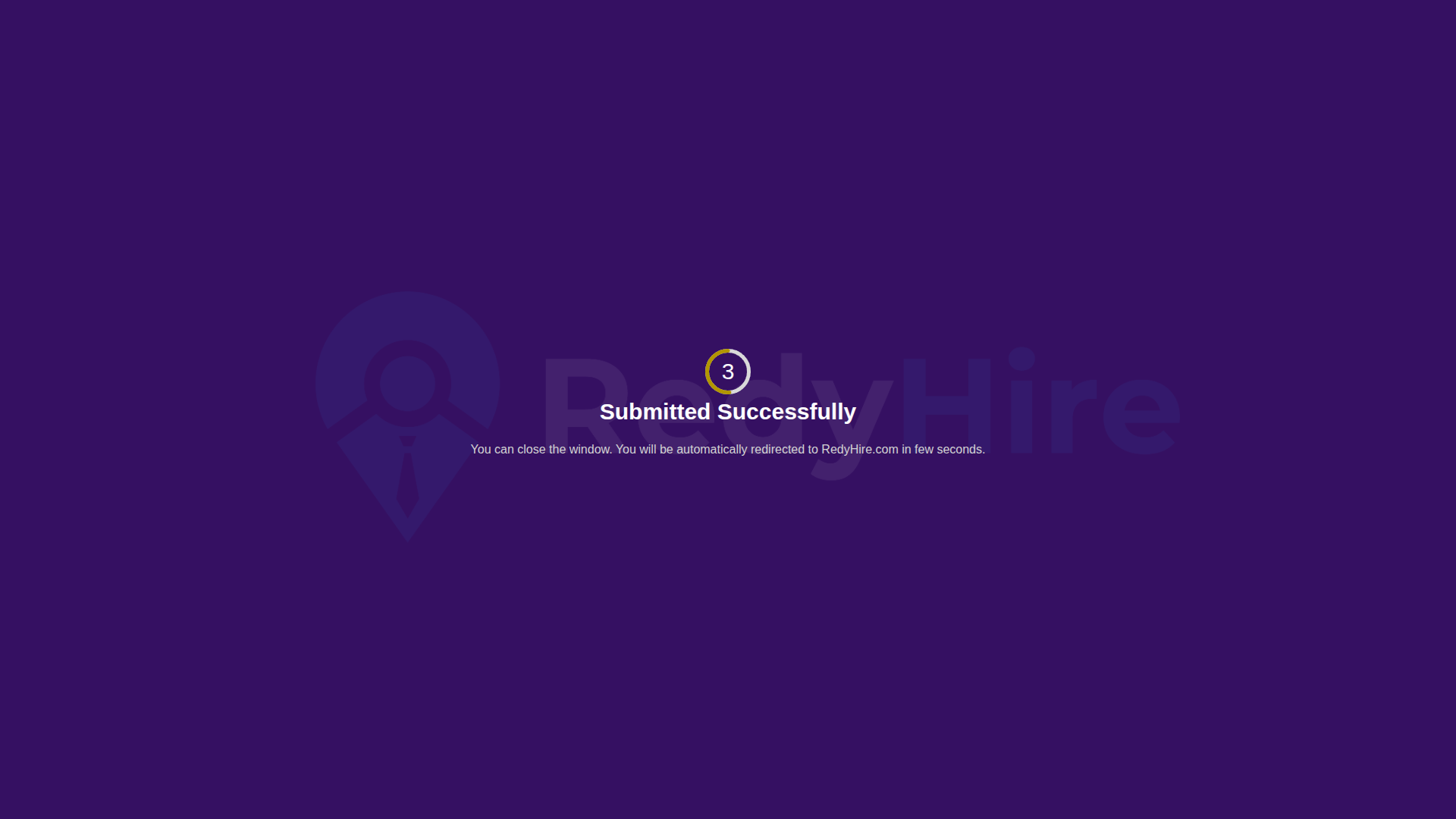
Wait for the final success screen after submission completes.
Close the window only after submission is complete.
Quick checklist before you begin
Use a stable internet connection and keep your laptop charged.
Keep your camera, microphone, and screen sharing on if required.
Answer naturally and expect follow-up questions during the interview.
Ask clarifying questions during coding rounds if you need more context.
If the AI interviewer seems unresponsive, say "Are you there".
Do not close the window until submission is complete.
Keep exploring
These pages explain the AI interview product and integrity model behind the experience you just reviewed.
Contact RedyHire support
If something does not work during setup or while taking the interview, contact support right away.